
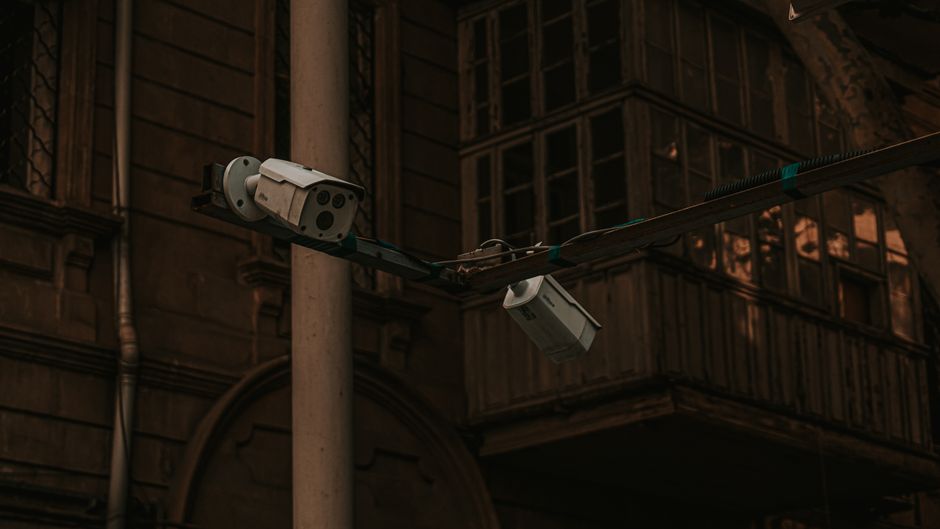
After years of auditing hundreds of security setups, a recurring pattern emerges: the most sophisticated surveillance hardware often fails not because of a defect, but due to subtle, overlooked environment stressors. You might assume your system is broken when it drops the feed, yet nine times out of ten, the issue lies in a minor configuration mismatch or a hidden bottleneck in your local network infrastructure. Professionals don’t rely on luck; they follow a systematic diagnostic process to eliminate variables one by one, ensuring that “cctv sering offline” becomes a relic of the past rather than a recurring frustration.
Addressing these disconnects requires you to shift from a reactive mindset to an analytical one. Instead of simply power-cycling your devices and hoping for the best, you must evaluate the invisible factors—like signal congestion and power stability—that dictate the reliability of your camera stream. By methodically isolating these common failure points, you can stabilize your security perimeter and restore the peace of mind you originally invested in when you first installed your surveillance system.
Checking Your Network Strength and Signal Interference
Wireless CCTV cameras are notorious for dropping connections when the Wi-Fi signal is inconsistent or congested. Even if your smartphone shows a full signal in the same room, a camera often requires a consistent, high-bandwidth stream that a saturated network cannot maintain.
- Analyze Signal Strength: Use a Wi-Fi analyzer app to check the dBm levels at the exact location of your camera. Anything weaker than -65 dBm is prone to frequent disconnections.
- Identify Frequency Congestion: If you live in a dense residential area, your 2.4GHz band is likely cluttered by neighbors’ routers, microwaves, and Bluetooth devices. Switch your camera to the 5GHz band if the hardware supports it.
- Minimize Channel Overlap: Ensure your router is set to an uncongested channel rather than relying on the “Auto” setting, which can cause momentary drops when the router switches frequencies.
The Impact of Router Distance and Physical Barriers
Distance is the enemy of stability, but physical obstacles are often more damaging to your connection. Concrete walls, metal cabinets, and even large mirrors act as significant signal blockers that force your camera to constantly renegotiate its handshake with the router.
If your camera is located more than two rooms away from your router, the signal degradation is likely causing the “offline” status. Consider installing a dedicated Wi-Fi extender
Checking Your Network Strength and Signal Interference
Beyond physical distance, signal congestion often triggers the “cctv sering offline” phenomenon. Most residential routers default to the 2.4GHz band, which is prone to interference from household appliances like microwaves, cordless phones, and even Bluetooth devices. When these frequencies overlap, your camera struggles to maintain a stable handshake, leading to frequent connection drops.
To verify if interference is the culprit, execute these diagnostic steps:
- Check Channel Congestion: Use a Wi-Fi analyzer app on your smartphone to identify which channels in your area are overcrowded. Switch your router’s channel settings from “Auto” to a less congested, static channel (specifically 1, 6, or 11 for 2.4GHz).
- Isolate Signal Noise: Temporarily power down nearby electronic devices to see if the camera’s stability improves. If the connection stabilizes, relocate the offending device away from the camera’s line of sight.
- Prioritize Frequency Bands: If your CCTV model supports 5GHz, force the connection to this band. While it offers less range than 2.4GHz, it provides significantly less interference in dense urban environments.
Avoid the common pitfall of placing your router inside a metal cabinet or behind a large television. These materials act as physical signal dampeners that exacerbate existing frequency noise, causing your device to cycle through offline states repeatedly.
The Impact of Router Distance and Physical Barriers
Beyond the obvious physical obstructions, the signal attenuation caused by structural density is frequently underestimated. Concrete walls, reinforced steel beams, and even thick glass partitions act as formidable barriers that degrade Wi-Fi throughput, often forcing your camera to drop its connection during periods of low signal-to-noise ratio.
To determine if your camera is suffering from distance-related latency, consider these diagnostic factors:
- Signal Attenuation: Every wall a signal passes through reduces its effective range by roughly 10% to 30%, depending on the density of the material.
- The “Line of Sight” Rule: If you cannot draw an imaginary straight line from your router to the camera without crossing a major structural obstacle, your connection is likely unstable.
- Packet Loss Threshold: Once your signal strength drops below -70 dBm, the camera will struggle to maintain a handshake with the router, leading to the “offline” state you experience.
If you find your camera is positioned in a “dead zone,” avoid relying on cheap, low-bandwidth Wi-Fi extenders. Instead, prioritize a Mesh Wi-Fi system or a Powerline adapter to bridge the gap. These solutions bypass structural interference by creating a dedicated backhaul or utilizing your home’s existing electrical wiring, ensuring a consistent data stream that standard repeaters often fail to provide.
Identifying Power Supply Failures
Even with a stable network, your CCTV system might frequently drop offline due to an unstable power supply. Many users mistakenly attribute these intermittent disconnects to Wi-Fi interference when the actual culprit is a failing power adapter or insufficient voltage delivery.
Voltage drops occur most often when using long, low-quality extension cables, which cause the power to degrade before reaching the camera. To diagnose this effectively, perform these targeted checks:
- Test with a Multimeter: Measure the output at the end of your cable run. A 12V camera often struggles if the voltage dips below 11V, leading to spontaneous reboots.
- Inspect Adapter Heat: If the power brick is excessively hot to the touch, its internal capacitors are likely failing. Replace it with a high-amperage unit that matches the exact voltage requirements.
- Check for Oxidation: Inspect the DC barrel connectors for signs of corrosion or “green rot.” Clean these contacts with high-purity isopropyl alcohol or replace the connector to restore steady power flow.
By isolating the power path, you eliminate the “ghost” network issues that plague aging installations. Always prioritize shielded power cabling if your runs exceed 10 meters to prevent electromagnetic interference from impacting your system’s stability.
Router Configuration and IP Address Conflicts
Beyond physical power integrity, your CCTV system frequently drops offline due to silent network conflicts that remain invisible to standard diagnostic tools. Most users rely on DHCP, where the router dynamically assigns IP addresses. However, when a router reboots or a lease expires, it may inadvertently reassign your camera’s IP to another device, triggering an address collision that knocks the camera off the network.
To stabilize your connectivity, implement these tactical network configurations immediately:
- Assign Static IP Addresses: Access your NVR or camera’s web interface and disable DHCP. Manually assign a unique IP address outside the router’s automatic DHCP pool range (e.g., if your router uses 192.168.1.1 to 192.168.1.100, assign your cameras 192.168.1.150 and above).
- Implement IP/MAC Binding: Log into your router’s administrative console and locate the “Address Reservation” or “Static Lease” table. Map your camera’s specific MAC address to a fixed IP to ensure the router never assigns that address to another device.
- Check Subnet Consistency: Verify that your gateway and subnet mask settings match your local network configuration precisely. A single mismatch here will cause intermittent “ghost” offline states that appear to resolve themselves randomly.
By moving away from dynamic assignment, you eliminate the primary cause of sudden, unexplained connectivity drops. This proactive approach ensures your hardware maintains a persistent handshake with the gateway, regardless of router resets or power fluctuations.
Firmware Updates and App Synchronization
Beyond network configuration, the software layer often harbors hidden triggers for instability. Manufacturers frequently release patches to address handshake protocols, security vulnerabilities, or memory leaks within the camera’s internal operating system. When your firmware lags behind, these unpatched bugs can cause the device to hang or drop its connection during routine data transmission.
To maintain a stable link, prioritize these software maintenance routines:
- Enable Auto-Update Features: Navigate to your camera’s management portal and toggle “Auto-Update” to ensure critical patches install without manual intervention.
- Synchronize Time Zones: Verify that your camera’s system time matches your local network time via NTP (Network Time Protocol) settings; a significant time drift often causes authentication failures with the cloud server.
- Clear App Cache: Periodically purge the cache of your mobile monitoring application, as corrupted temporary files frequently prevent the app from fetching the latest status from your camera.
Neglecting these updates often leads to “ghost” offline status, where the hardware remains powered but the software fails to negotiate a secure handshake. If a firmware update fails, perform a factory reset to clear out corrupted configuration files, but always back up your current settings first to avoid a complete system re-provisioning.
Proactive Maintenance to Prevent Future Disconnects
To maintain long-term stability, move beyond reactive troubleshooting by implementing a disciplined maintenance cycle. Most connection issues stem from “bit rot” in cache files or aging network hardware that struggles with modern high-bitrate streaming.
Adopt this quarterly proactive checklist to ensure your system remains resilient:
- Refresh IP Assignments: Log into your router’s DHCP client list and assign static (reserved) IPs to every camera. This prevents IP conflicts caused by lease expiration, which is a frequent culprit for sudden “offline” status.
- Thermal Management: Dust accumulation on heat sinks causes thermal throttling. Use compressed air to clear vents every six months; overheating hardware often drops the Wi-Fi radio before the processor fully fails.
- Firmware Verification: Check the manufacturer’s portal for security patches. If a camera is EOL (End-of-Life) and no longer receives updates, isolate it on a dedicated VLAN to prevent potential botnet traffic from saturating your bandwidth.
- Signal Integrity Audit: Use a Wi-Fi analyzer app to monitor dBm levels. If signal strength drops below -70 dBm, install a dedicated access point rather than relying on unstable mesh extenders.
By treating your CCTV network as a critical infrastructure component rather than a “set and forget” appliance, you minimize downtime and extend the lifecycle of your hardware significantly. Should persistent issues continue despite these optimizations, prioritize replacing the power supply unit (PSU) first; voltage fluctuations are often the silent killer of stable network handshakes.